EPURAREA APELOR UZATE DIN INDUSTRIA LAPTELUI
Profesor:
SCURTU ANCA

Our project brings together 10 partners with the common interest to support students/trainees, for best integration in new digital society.
Project partners are all of them providing VET education.They are solving problems coming from the lack of digital skills of students/trainees and lack of digital solutions for teachers/trainers. The remote education that been experienced in each school and organization during Covid crisis increased the inequalities between students with different educational needs and backgrounds.

Our Digit+ interactive learning and evaluation platform for teachers will provide a curriculum and evaluation instruments for teachers in order to make them able to use innovative methods for adaptation of remote teaching to students needs to inshore equal opportunities and access to quality education for disadvantaged students.
Profesor:
SCURTU ANCA
COVID-19
has made an overwhelming and unprecedented
impact on the world. One of
the most affected sectors has been education , which governments, educational
authorities and teachers have had to review and revise due to
the safety concerns of families, teachers and students. Luckily, educators have
been able to benefit from many EdTech tools at their disposal in this period,
the most important of which being the Learning Management Systems (LMS).
Digital education has become a growing need for both teachers and students. For this reason, the paper presents the stages of conducting an online lesson using the Kompozer program.
PhotoStage is a program for creating video slideshows from your digital pictures, photos, and video files.
Animoto
is a cloud-based video creation service that produces video from photos, video
clips, and music into video slideshows and customized web-based presentations.
Flixpress is an important tool that can be used to make short videos that can then be integrated into other videos made with other applications but can also be used as stand-alone entities to capture attention, Flixpress Templates are eye-catching that allow the addition of sound.
Google Jamboard is an innovative tool that allows teachers to interact with students with a whiteboard-style experience, only digitally without being in the same room.
Jamboard provides a canvas onto which students and instructors can sketch, diagram ideas, and draw collaboratively. This work can then be saved to Google Drive or exported as a PDF/eBook. As part of the Google Apps suite, Jamboard is completely free to use for members of the Princeton community. Each "Jam" can have up to 20 slides and can accommodate up to 50 people.
You can find Jamboard by going to http://jamboard.google.com. You can also find it by clicking the "New" button in your Google Drive and hovering over "More".
When you open Jamboard, you'll see all of the recent jams you've opened. You can also click the + button in the bottom right to create a new jam.
The Jamboard interface
Once in a ‘jamboard’, you can write on the board with several available tools, change the background of the board, and export to a PDF file:
A. Enter or change the title of your board.
B. Navigate through the existing slides of your board and add new slides.
C. Zoom in and out D. Select a background for the current slide. You may select solid, lined, or graph paper styles, or upload an image to use as a background.
E. Clear all the markings, or annotations, from the current slide.
F. Select a pen and ink color with which to draw on the slide.
G. Use an eraser tool
Jamboard tools reference
Draw, erase, and add shapes
Tool | Tool |
Draw | Choose a pen and color. Then use your finger or a stylus to draw. |
Erase | Choose the eraser to erase with your finger or a stylus. You can also use the eraser that comes with your Jamboard. Touch and hold the Erase tool to show the Clear Frame option. Note: The eraser only works with the drawings made using the pen. To delete an object, select it, then tap More "" and then Delete. |
Handwriting recognition | Choose the Handwriting recognition tool and use your finger or the stylus to write text. The tool converts your handwriting into printed text |
Shape recognition | Choose the Shape recognition tool and use your finger or a stylus to draw a shape. The tool converts your drawing into a shape object. Draw from one shape to another to add a line that connects the shapes. |
Autodraw | Choose the Autodraw tool to draw shapes and objects that can be recognized and transformed into actual images on the Jamboard. |
Select | Use the Select tool to grab objects and drawings made with the pen tools. Choose the Select tool, then use your finger or the stylus to outline a drawing. You can then drag it to move it around the frame or pinch to resize it. When using Select, you can also move objects around quickly by just tapping on them and dragging them. No drawing strokes will be generated when using the Select tool. |
Laser pointer | Choose the laser pointer and use your finger or the stylus to temporarily highlight items on the board. Other users who are looking at the file from phone or tablet can also see these areas highlighted. When content is being presented on video calls, users on the call can also see the highlights. |
Add Drive files, images, and notes
Add a Drive file | You can add a file to the Jamboard from Drive on the phone or tablet app. For details. |
Search web | Choose the Search web tool and enter text to search for information. |
Add an image | Tap Choose image ""
|
Insert note | Add a text note to your jam. Double-tap a note to edit the text or change the color. |
Source: https://support.google.com/jamboard/answer/7383648?hl=en
Padlet is a free software for creating collaborative murals in a virtual way. Teachers and students can share links and photos in a secure environment. It allows them to create a custom URL and moderate posts. Padlet is device-neutral, as it works on any internet-enabled device, including: PC, laptop, tablet, smartphone.
Canva is the world’s easiest design tool that allows you to design anything and publish anywhere. And learn is your one-stop destination for the latest inspiration on design, marketing, business, and education. On this page, you’ll have access to resources and inspiration for the classroom.
Creating an eBook on Canva
Logging into Canva:
Go to https://www.canva.com/ and click on “Login or Signup”
In the search bar of the dropdown menu that appears, type the words “A4” or US Letter” for the size of your template. You can also do this manually by clicking on the “Custom size” button and input the dimensions you’d like to use
Type "ebookt templates." in the search bar to start.
Search for a template
Canva’s library of eBook templates includes layouts for every style and theme. You’ll be able to view the front, inside and back cover pages. Decide for yourself which pages to keep and which ones to toss or edit.

Experiment with features
Explore high-quality stock photos, images, illustrations, icons and other graphics. Try out different color schemes, backgrounds and font styles. Use the photo effects feature to apply filters and the collaboration tool to design with others.
Keep customizing
Make your eBook uniquely yours. Upload your own photos and images, add your own personal branding elements or mix and match elements from different templates. Use the drag and drop tool to move icons and graphics around.
Publish and share
Download and save your eBook cover as a JPG or PNG. Upload and share your design online in a few clicks.
If you’d like to make sure that your eBook will look stunning even in print, make sure to download the design as a PDF print.
This will ensure that your eBook maintains the standard high-resolution image DPI of 300.
Why to use an eBook at your classroom?
Learning in the classroom can be fun and more prolific with interactive eBooks. A simple definition is: an eBook is a book that can be read digitally on a computer screen or on an electronic tablet. However, it is different from a ‘PDF version of the book.’ So, it has a number of interactive elements, like dictionaries and pronunciation guides, can integrate video, audio, graphic, illustrations and even animations. Moreover, while an instructor’s role cannot be discounted, learners can also learn individually, and through team work. In order to use an eBook, it is required only a simple computer or reading device and internet access
An interactive eBook may present a situation that needs to be analyzed. All learners can brainstorm and come up with different solutions and the instructor can guide them towards the correct one. So, in sum, learning through interactive eBooks is learning by doing and understanding real-world situations through the virtual world.
Setting Up A Zoom Account
Zoom is a teleconferencing solution that allows you to have video conferences with multiple users. With Zoom, you can host or join teleconferences, make calls, and chat with other uses. Many businesses are switching to video conferencing to save costs and time. You should get on Zoom as well because the benefits are many. You can use Zoom from your smartphone and your computer.
Signing Up for Zoom
One of the first steps in setting Zoom up is signing up. You can sign up from your mobile phone or your computer. Follow these instructions;
1. On your browser, go to zoom.us
2. Click on the sign-up button.
3. There, you will be presented with options for the type of account to create.
4. Enter your name and password then click continue
Brief Description
This module is designed for the students to learn the importance of information , communication and digital technologies in the business projects, providing practical skills to support business projects.
The module focuses on the principles, tools and methods to use digital communications tools.
Participants will and develop basic skills knowledge on how to effectively communicate in a graphical, written, or a verbal form and learn the approaches to a professional digital and visual communication.
Introduction
- Digital Communication Technology is nothing more than a set of technological tools used in an embedded way, so that the company can reach its business objective faster and more intuitively.
- By implementing it, DCT can automate processes, improve learning, reduce costs and facilitate research, whether internal or external. In addition, by treating procedures with more effective and automated communication, it promotes improvement in the customer experience and generates greater consumer satisfaction with the brand.
- Digital communication tools in companies have been widely used by managers from different areas in order to provide better communication between employees and even with the public.
- DCT is being widely used. By using software, hardware and telecommunications in an integrated way, it can break down social, cultural and even technological barriers that hinder business success.
Learning Outcomes
• Essential digital communication tools for the workplace
• How to create a digital communication policy for your company
• Use digital communication in the workplace
What is digital communication?
- Digital communication is any type of communication that relies on the use of technology. There are many types of digital communication, commonly referred to as digital communi- cation channels.
These include email, phone calls, video conferencing, and many types of instant messaging like SMS and web chats. Even blogs, podcasts, and videos are considered forms of digital communication.
- This communication has become popular and can be used with different audiences of an organization.
- The reality of digital is inherent to the functioning of companies, because regardless of the size and field of action, the use of technology tools has become indispensable.
What is digital communication for?
Digital communication defines communication strategy and actions within the digital environ- ment.
The speed of digital innovation and the differences in its absorption and implementation requires new positions and knowledge from organizations and communication professionals, a lot of flexibility and creativity in planning and managing communication processes.
In a world where globalization grows every day, the market is increasingly competitive, telecommunications services increase their offerings and the consumer is increasingly demanding, it is necessary to invest in this type of communication to differentiate the brand and stay active.
By implementing it, DCT can automate processes, improve learning, reduce costs and facilitate research, whether internal or external.
In addition, by treating procedures with more
effective and automated communication, it promotes improvement in the customer
experience
Main characteristics of digital communication:
> Relationship: The relationship with the client is extremely important. To achieve good results, brands go to social networks.
> Engagement: Engagement is the way companies approach their audience.
> Content: Good content can influence consumers by retaining and retaining customers.
> Presence: Having a presence in digital is the realization of the company's results gain, since 66% of the population worldwide will be connected to the Internet by 2023. Besides being present, it is necessary to be available to the public, interacting and encouraging to know more about the brand, continue monitoring and consuming.
> More decentralized Less hierarchical
The main benefits of digital communication:
> Cost reduction: Investing in digital actions involves lower costs compared to printed materials.
> Greater reach: While printed materials have limited access, especially for geographical reasons, digital content can be accessed from anywhere.
> Measurement: There are several tools that allow the verification of results, which allows evaluating whether the type of strategy performed by the company is working or not.
> Qualified audience: In digital strategies, brands invest resources in an audience that is in fact interested in the product or service offered by the company.
Advantages of digital communication in the workplace
- Digital communication is fast, efficient, and convenient. An employee can have a conversation in real time with a colleague or client from the opposite side of the world without having to leave their desk. Company leaders can use digital channels to communicate with their entire global workforce at once, and use corresponding channels to effectively collect feedback from those employees.
- In fact, most modern marketing initiatives can be viewed as digital communication. Social media campaigns and video ads are simply a way for companies to mass communicate with potential customers in a way that is rapid and cost-effective.
- Looking at all the business areas that involve digital communication, it’s safe to say that modern technology has vastly improved the way companies operate. With easy and accessible ways to communicate, employees can spend their time focusing on more important tasks.
Disadvantages of digital communication in the workplace
As the business world embraces digital communication, there are a few disadvantages that have emerged from its use. For one, having constant access to communication tools can make it hard for employees to disconnect at the end of the work day.
Email notifications and pings from work apps follow them home through their smartphone, blurring the line between work life and personal life. Without having a chance to unplug, employees are more likely to experience burnout and other signs of overworking themselves.
Digital communication has also presented security challenges for many companies. Hackers can make their way into virtual meetings and hijack the call; email phishing opens a door for the entire organization’s online systems to be compromised.
Every time company data is transmitted over the internet, there is a risk that this information won’t remain private.
Essential digital communication tools for the workplace
Now that you know how to effectively use digital communication tools, which are the most important for your organization?
The answer is different for every company, but typically include the following:
>> Email client with built-in features; Chat/instant messaging; Project-based collaboration tool;
Video conferencing; Social Media; SMS Text Messaging; Email Marketing; Voice Calling.
https://www.canva.com/education/
Canva for Education simplifies content creation, teamwork, and visual communication in the classroom and beyond. It is 100% free for kindergarten, primary and secondary teachers and students.
You can organize your classroom space, invite students, and manage classes, activities, or projects all in one place. From your dedicated class space, you can share and review work between Google Classroom, Microsoft Teams, and more. You can also share assignments for students to complete.

Mentimeter is a cloud-based solution that allows you to engage and interact with your target audience in real-time. It is a polling tool wherein you can set the questions and your target audience can give their input using a mobile phone or any other device connected to the Internet.
Google Forms is a free tool from Google that allows you to do the following:
|
You access Google Forms through the Google Drive screen or the Google Forms web app.
You can use Google Forms with your personal Google account, or through a Google Apps for Education account. With a Google Apps for Education account you can also do the following:
Require that respondents be from your Google Apps domain.
Collect respondents usernames.
Once you are in Google Drive you can create a new form as follows:
Click the New button in the top left corner .
Then click More from the drop-down menu.
Finally click Google Forms from the pop up menu.
Your blank form will now be created.
To name your form, type the title in the box where is currently reads Untitled form. You can always change this later.
Your form is now ready for you to edit.
Just like with other Google Documents, you can give other people edit rights to collaborate on the creation of your form. To add collaborators:
From the edit mode of the form click File in the top menu bar.
Then click Add collaborators...
The normal Sharing settings window will open where you can share the form with other people.
After creating your form, you can optionally add text for a description. Usually this is where you can explain to the user the purpose of the form, any special directions, or other helpful information.
Below the title of the form, there is a box labeled Form Description.
Simply click and type in that box to add your description.
You can include web addresses in the description box and they will show as clickable links on the live form.
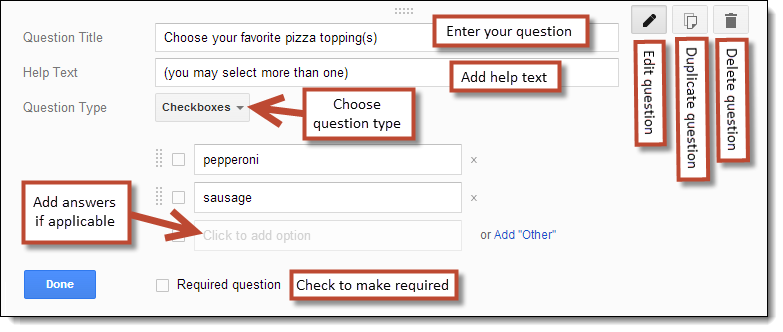
When you create your form, your first question will be created as well. You can edit the question as follows:
For Question Title you can type in the question you wish to ask.
or Help Text you can add additional directions or clarification for the question.
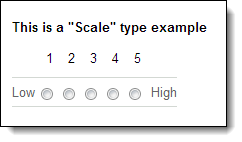
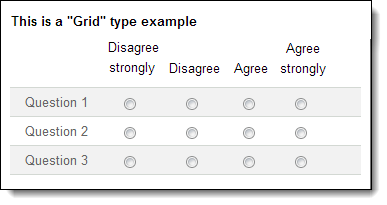
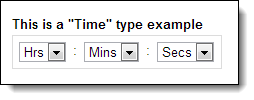
For Question Type you can choose between nine different types of questions (explained later).
If the question type needs a list of answers (such as multiple choice or checkboxes) then you can fill in the available answers.
To force the user to answer the question, check the Required question box.
Click Done when finished.
At any time you can also do the following to a question:
You can edit a question by clicking the edit button (the pencil icon) in the top right corner.
You can duplicate a question by clicking the duplicate button (the double-page icon) in the top right corner.
You can delete a question by clicking the delete button (the trash can icon) in the top right corner.
You can change the order of questions by clicking and dragging a question to a new location.
In addition to the one question you begin with, you can add more questions and other items to your form.
|
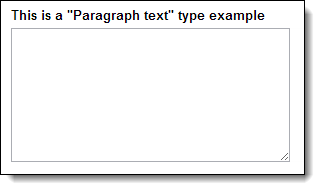
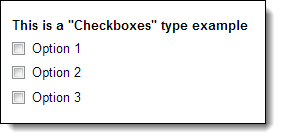
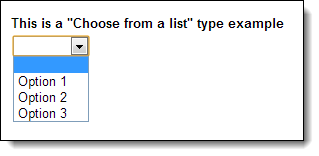
There are nine different types of questions you can include in a form:
|
|
|
|
|
|
|
|
|
Google Hangouts is an easy way to stay in touch with all the people synced to your account. It’s a free social service that lets you communicate by sending text messages, pictures, videos, and emojis. You can send messages to people whether they’re online or not and host free group video calls for up to 10 people at a time.
Zoom is a cloud-based video communications app that allows you to set up virtual video and audio conferencing, webinars, live chats, screen-sharing, and other collaborative capabilities
Social media are interactive technologies. It means that a person can make the device do an action in real time. The term device refers to electronic object (computers, smartphone, tablets). Social media allow the creation of information. They also allowed the sharing of ideas, interests and expressions.
Social Media created virtual communities and networks. Virtual communities are people with same interests that meet online. A network is group of people who work together but in different places. Social media changed the way of communicating. They created a new way of exchange of information. So, social media are new communication tools. Before social media, people liked to go out so they could communicate with friends. Now people prefer to share their ideas, interests and emotions on social media. When chatting with a person you can use emojis. They were invented to better communicate your feelings.
The positive aspects of social media
One of the positive aspects (benefits) of the creation of social media is the fast communication. Before this creation, communication was slow. Because you had to wait to meet a person to tell something.
Now you can give information in real time (instantly). You can send a photo, a short text or a voice recording. The other person receives the message immediately (few seconds). This is possible thanks to program created to communicate (application).
Another positive aspect is to meet new people staying at home. Thanks to social media it is simple to find people with same interest. You can write your interest on the application (app) and start a conversation. To send messages on social media people write messages on chat. However, we have to be careful.
The negative aspects of social media
Social Media were created to connect distant people together. But now people are losing interest in meeting others in person. People prefer doing everything online.
Second negative aspect is that young people create new words. It is difficult to understand young languages. They mix together different word or languages.
For this reason, none respects grammar rules. This implies difficulty in understanding the message of the other. So, they also use the emojis. But each person uses them in different way. It depends of the perspective of each person.
Old web’s traditional distinction is that it mainly had read-only content, websites and portals, and content belonging to authors. In the case of WEB 2.0-social media we have a large number of users, read-write content, and the ease to create and share it.
“Social media is about conversations, community, connecting with the audience, and building relationships. It is not just a broadcast channel or a sales and marketing tool. Social media not only allows you to hear what people say about you, but enables you to respond.” ◉ TUFTS / Social Media Overview
It is very easy and quick to create quality content in WEB 2.0 and make it easily searchable. There are more and more services in the cloud as well as non-traditional channels and web-based applications to access and create content.
Take RSS for example, a web feed that allows people to access updates to websites in a standardized, computer-readable format. These feeds allow people to monitor of many different websites in a single news aggregator.
Owing to the development of Semantic search, users can find very precise information. There is also an increase in searches that are made through images or speech. Nevertheless, the use of social media poses a question of privacy to its users.
Virtual Reality and Augmented reality provide users entirely new, interactive experiences and in-depth communication. Example: augmented reality app Snow. The “Internet of Things” is the interconnection of various devices with the Internet embedded in them. It enables them to send and receive data while offering people an opportunity to be more efficient, save time, money, and accelerate their communication. Indeed, social media shaped millennial culture through new rituals, symbols, gifs, sound bites, chats, brief moments, and transitory flashes of content. Increasingly, social media encompasses augmentative and alternative communication (AAC). These are devices, systems, strategies, and tools that replace or support natural speech. These tools support people who have difficulties communicating through speech.
Content customization goes far beyond simple picture editing and captioning. Outlets like Snapchat have provided users with the ability and drive to add stickers, drawings, and (most notably) filters. As phones became more capable, changing the overall image of oneself has become second nature before posting. Twitter introduced the hashtag to help users filter trending topics. Users have been able to go through the “What’s Happening” field of their homepage to gain insight into global events and national news.
Even Facebook, a personal profile origin media, has become increasingly more journalistic by highlighting trending topics. It was taken a step further when trending news was given its own section in the Facebook mobile app. With the addition of Facebook Live in 2016, users quickly went from sharing private, fun, and touching moments with their friends, to becoming on-spot journalists and recording everything from police shootings to opioid abuse cases.
Live videos helped build serious momentum behind civil rights movements. “Ephemeral Content” has been a relatively recent trend in social media: temporary content that is only available for a short time before disappearing. Snapchat, Instagram, and Facebook stories are the most famous examples of it. It panders to the shrunken attention of social media users and offers very short, sometimes engaging stories that become increasingly popular. Chatbots have also grown in social media popularity, especially among businesses, as they are relatively easy to set up on social media.
The entry of AI tools, like chatbots, on various platforms continues to increase daily. An important and distinctive feature of social media are its algorithms. Undeniably, they already influence almost every aspect of our digital lives including what content we watch, read, what channels we discover, and even who we meet.
Sources: https://www.theeducationmagazine.com/word-art/social-media-affects-communication/
TUFTS / Social Media Overview
Canva is a free graphic design platform that allows to easily create lesson plans, invitations, business cards, flyers, Instagram stories etc. Canva's users can choose from thousands of design layouts for any project, including presentations, social media videos, posters, flyers, invitations and more.
Popplet is a web 2.0 tool that provides a canvas on which
you can create visual representations of your ideas or projects.
ZUMpad is a web 2.0 tool that can be used to create texts
collaboratively.
The LearningApps.org
platform emerged from a doctoral thesis at the University of Mainz and is
freely accessible.
Kahoot is a game-based learning platform. The teachers can use it as a learning tool either in on site or online education. Kahoot is also a good for team building activity. It is an useful tool for testing the already gained knowledge and also for learning new things. It can be used in all the classes and make them more creative and interactive for the students. This tool can be used by web browser or mobile application. How to start?

Quizizz is a game based learning tool that can be used in education for better and more creative learning. It can be used in class or as an assignment. Quizizz is suitable for any school subject and can make the learning process more interesting. Students can practice their knowledge and learn new things with the quizizz games. It can be used on web browser and as an mobile application.

Study stack is a web 2.0 tool that can be used for creative learning in the education.

The safest place to download Krita is from the project website krita.org. When you visit the download page, you will notice that there are different versions of Krita that you can work with. Each version has a different audience in mind. You will probably want Krita Desktop since that works with desktop and laptop computers. his book contains information up through Krita 2.9.7.3.
In this course I will teach you how to create a simple website in HTML + Iframe.
Welcome to the Basic Skills Training for use of digital learning instruments!
This training course was developed in relation to the implementation of the Erasmus+ KA2 Vocational Education Strategic Partnership project ‘‘DIGIT+: Digitalization for in groups integrative training - international network for support, connection , innovation and know-how share in digital vocational education’’(Project code 2021 -1-RO01-KA220-VET-000032924).
Information and Communication Technologies applied to Education constitute a set of services, networks, software and multiple devices aimed at improving the quality of learning within a concrete environment, and which are integrated into an interconnected and complementary information system.
Additive manufacturing , also known as incremental production , is a device that produces computer- designed or 3D modeled designs quickly , without the need for an extra mold , using various materials ( varies according to the part to be produced). These devices , besides the main sectors such as machinery, agriculture, automotive, medical , toys, stationery , etc. in terms of practicality of use and cost-effectiveness . Its use has become widespread in many sub- sectors .
The basic working logic of the 3D printer is based on the direct production of any three- dimensional model by melting the plastic with layering technology . In order to better understand the basic working logic of the 3D printer , it is possible to collect them under 3 headings;
Arduino is an open-source electronic platform based on easy-to-use hardware and software. Arduino boards are able to read inputs and turn them into an output by sending a set of instructions to the microcontroller on the board. To do this, the Arduino programming language (based on Wiring) and the Arduino Software (IDE), based on Processing are used.
A worldwide community of creators uses this open-source platform, it has many free resources that can be used by beginners and experts alike.


 one of the following tools